Connect your Facebook Page
Sign in with your personal Facebook profile, authorize a Page you manage, then save that Page in NM IMS. You do not need your own developer app or a manually generated access token.
Before you start
- Use the personal Facebook profile that has permission to create content on the Page. A Page and the profile managing it are different identities.
- NM IMS publishes to Facebook Pages, not personal profiles. Check that your profile can create posts on the intended Page.
- Start from the NM IMS account or workspace where you want the connection saved. Keep using the same browser throughout authorization.
Connect Facebook
- Open Settings → Social media accounts and click Connect Facebook.
- Sign in on Facebook with the personal profile that manages your Page. If the wrong profile appears, choose Log in to another account.
- If Facebook says you previously linked NM IMS, choose Edit settings to review Page access. Continuing with previous settings can reuse an earlier selection.
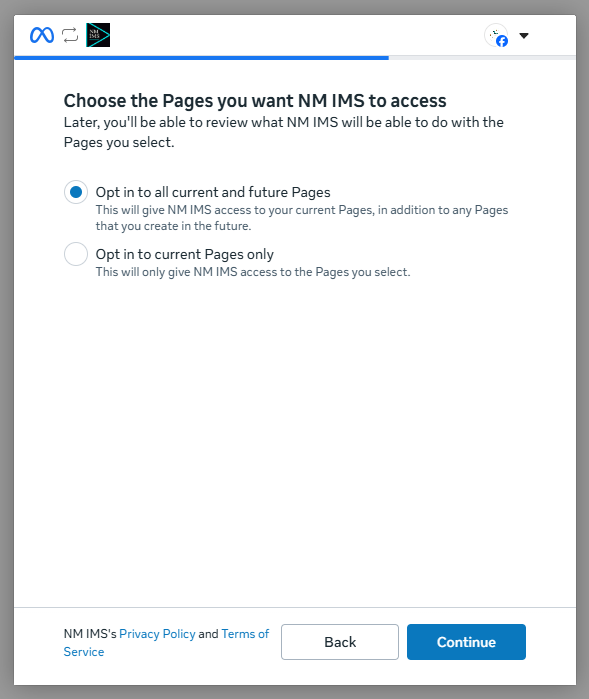
- At Choose the Pages you want NM IMS to access, choose Opt in to current Pages only, select the intended Page when the list appears, and click Continue. The alternative grants access to current and future Pages; use it only if that is the access you intend to give.
- Review the requested Page access and finish Facebook's confirmation. Allow the permissions needed to list your Pages, read Page engagement, and create Page posts.
- Back in NM IMS, open the Facebook Page dropdown and choose the Page you want to connect. Click Connect selected Page. This final step saves the connection.
- Wait for the success message. Find the Facebook — your Page name entry in the saved-account list below, expand it, and click Test connection. This checks access without publishing a video.
Your Facebook password is entered only on Facebook. Connecting a Page does not publish anything. To connect another Page, repeat the connection flow and select that Page.
Publish videos
- Open Videos → Assembled videos or Uploaded videos.
- Select the connected Facebook Page and the videos you want to publish. Uncheck any destinations you do not want to use.
- Review the individual descriptions and optional Append description text. If Auto AI write description is enabled, NM IMS writes descriptions for selected videos without one before uploading. AI writing charges apply. On-screen captions and appended text do not count as an individual description.
- Click Queue uploads. Follow the status in Social Accounts and open the published post link when available.
A connection test does not test publishing. Queued or processing means the upload is still in progress; check the final status before retrying to avoid duplicate posts.
Disconnect or reconnect
Open Settings → Social media accounts, expand the saved Facebook Page, and click Disconnect. Confirm to remove that saved connection. Published posts and upload history remain; cancel queued uploads separately if you want to stop them.
To renew access, use Connect Facebook again, authorize the same Page, and finish with Connect selected Page. Reconnecting the same Page through the same NM IMS app updates its connection and preserves attribution of its history.
Frequently asked questions
Which Facebook account should I sign in with?
Use the personal Facebook profile that manages the intended Page and has permission to create its content. During authorization you choose which Page NM IMS can access. You do not sign in as the Page itself, and an Instagram username is not a Facebook profile login.
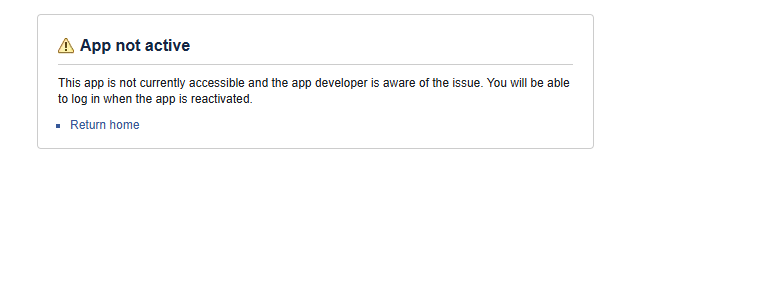
Why does Facebook say “App not active” or the app is unavailable?
This is an app-access restriction, not necessarily a wrong password. During development, access is limited to authorized app roles or testers; customer access depends on Meta's approvals and the app's availability. Contact NM IMS support to check the current app and whether test access is needed. Registering for an NM IMS review account does not itself grant a Meta app role.
How do I accept a Facebook tester invitation?
Ask NM IMS support to invite the personal Facebook profile that manages your Page. Send that profile's link or numeric ID, not your Page link or Instagram username. While signed in as the invited profile, open Meta Developer Requests, find NM IMS, and accept. If Meta requires developer registration, follow its prompts first, then reopen Requests. You do not need to create a developer app. Return to NM IMS and start Connect Facebook again.
I cannot find the tester invitation. Where should I look?
Open the Developer Requests link above using the exact invited personal profile. Facebook notifications may not show the invitation, and the business portfolio's Requests or Authorisations and verifications screens are different places. The shorter developers.facebook.com/requests/ address may show a broken-link error. If the correct inbox is empty, ask support to verify the invited profile and pending invitation. Do not create another NM IMS app.
Instagram works. Does that also enable Facebook testing?
No. An Instagram Tester invitation applies to the Instagram identity. Facebook testing uses an app role for the personal Facebook profile. A Facebook Page cannot accept a personal app-role invitation. Connections and permissions must be completed separately.
I can access an older NM IMS app. Why am I still blocked?
App roles belong to a particular Meta app. Access to an older app or login-test app does not transfer to the app NM IMS currently uses. Ask support to confirm that your invitation is for the current app. You do not need to transfer ownership of your Page or business portfolio to NM IMS.
Why does NM IMS say “Facebook returned no Pages with permission to create content”?
Facebook completed sign-in but did not return an eligible Page for publishing. Start Connect Facebook again and choose Edit settings on the “Continue as” screen. Review the Page selection, explicitly select your Page, and allow its publishing permissions. Also check that the signed-in personal profile can create content on that Page. If the Page is missing or the error persists, contact support with the error text and the step where Page selection stopped.
Facebook says I am connected. Why is there no saved Facebook entry in NM IMS?
Facebook authorization and saving the Page are two steps. In NM IMS, choose a Page in the Facebook Page dropdown, then click Connect selected Page. “Choose the Facebook Page to connect” means this step is still pending. After the success message, the Facebook entry appears in the same list as Instagram, TikTok and YouTube, with Test connection and Disconnect controls. Clear the platform filter or search if necessary.
Do I need my own app, token, or business ownership change?
No. NM IMS provides the integration and stores the authorization privately. Authorizing Page access does not transfer ownership of your Page or business. Normal customers do not need to create an app or copy tokens. Tester invitations are a separate, temporary access requirement when the integration is being tested.
What if I cancelled, declined permissions, or the connection expired?
Return to your intended workspace and click Connect Facebook again. Complete authorization in the same browser, review the required Page permissions, and save the selected Page. Do not reuse an old authorization link or refresh the callback page. If you changed NM IMS users or an impersonation session expired, return to the correct workspace before starting again.
The connection test works. Why did publishing fail?
The test checks access without uploading. Read the specific upload error in Social Accounts and check your Page permissions, the video's displayed requirements, and any Meta restrictions. Correct the problem before retrying, and check whether a post was already created.
Will disconnecting delete posts, history, or other Page connections?
Disconnect removes the selected saved Page connection from NM IMS; it does not delete its published posts or upload history. Other saved Pages remain separate. Revoking the app's access directly on Facebook can affect multiple Pages authorized by that Facebook profile; reconnect any affected Pages if needed.
Still stuck? Contact support with the error text, approximate time, affected Page, and step where you stopped. If sending screenshots, hide names, profile photos, account IDs and browser address bars containing authorization codes. Never send passwords, tokens or app secrets.