Connect your YouTube channel
Sign in with Google, choose the YouTube channel you want to publish to, and authorize NM IMS. You do not need your own Google Cloud project, developer app, client secret, or manually generated token.
Before you start
- Use a Google account that owns or has the appropriate access to the intended YouTube channel. A Google account, its personal channel, and a Brand Account channel can be different choices.
- Check the channel name on YouTube before starting. For a company channel, make sure you know which Brand Account to choose instead of your personal channel.
- Start in the NM IMS account or workspace where the connection should be saved. Keep using the same browser throughout authorization.
Connect YouTube
- Open Settings → Social media accounts and click Connect YouTube.
- On Google's sign-in screen, choose the Google account that manages your intended channel. Use Use another account if Google offers the wrong identity.
- If Google shows Choose your account or a brand account, select the channel you want to connect. For a business channel, select its Brand Account rather than your personal name. The chooser may not appear for every account.
- Review NM IMS's requested YouTube access. Authorize the access needed to identify the channel, upload videos, and manage the supported video actions. If you cancel or omit required access, the connection cannot finish.
- Wait to return to NM IMS and see YouTube connected. There is no separate Facebook-style Page-selection step.
- Find the saved YouTube — your channel name entry below. Check its channel name and ID, expand it, and click Test connection. This checks access without uploading a video.
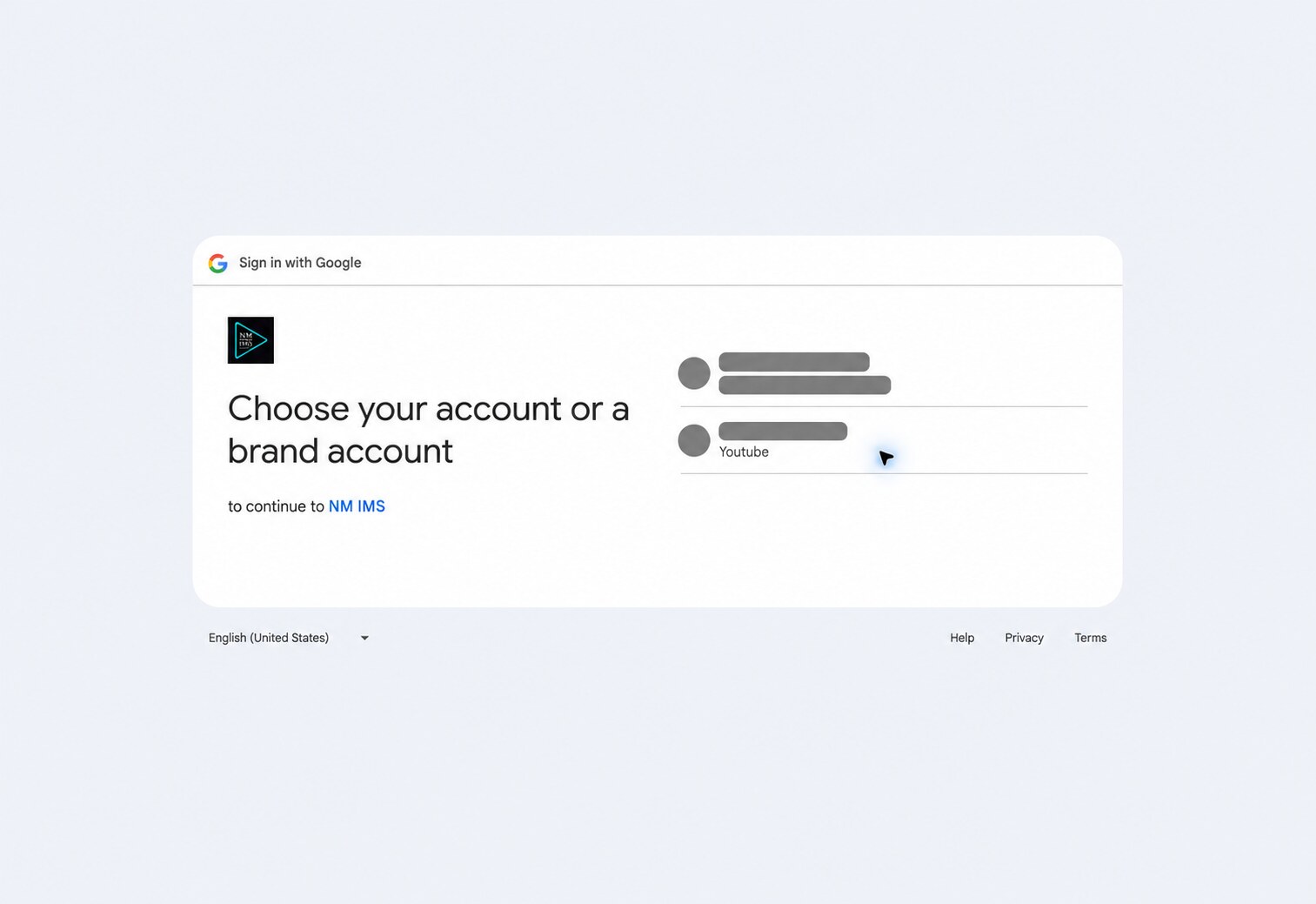
Your Google password is entered only on Google. NM IMS stores the resulting authorization privately and refreshes it automatically when Google permits. Connecting a channel does not publish anything. Repeat the flow separately to connect additional channels.
Publish videos
- Open Videos → Assembled videos or Uploaded videos.
- Select the saved YouTube channel and the videos you want to send. Uncheck destinations you do not want to use.
- Review the individual descriptions and optional Append description text. If Auto AI write description is enabled, NM IMS writes descriptions for selected videos without one before uploading. AI writing charges apply.
- Review the YouTube visibility choice—Public, Unlisted, or Private—and the made-for-kids audience setting. Choose the settings appropriate to your video.
- Click Queue uploads. Follow the upload status in Social Accounts, then open the video link to confirm the correct channel and visibility.
Uploading and YouTube processing are separate stages. A queued or processing status is not confirmation that a public video is available. Check the existing upload before retrying to avoid duplicate videos.
Disconnect or reconnect
In Settings → Social media accounts, expand the saved YouTube channel, click Disconnect, and confirm. Published videos and NM IMS upload history remain. Cancel queued uploads separately if you want to stop them.
To renew access, use Connect YouTube again and choose the same channel. Reconnecting the same channel updates its saved connection and preserves attribution of its history. Revoking a Google grant can affect other channel connections sharing it; reconnect any affected channels if needed.
Frequently asked questions
Which Google account should I use?
Use the Google account with access to the intended YouTube channel. Signing into NM IMS with one email does not require you to connect that same Google account. The saved YouTube channel name is the destination that matters; verify it before uploading.
How do I choose my company channel instead of my personal channel?
When Google offers an account or Brand Account chooser, select your company channel. If the personal channel was saved instead, disconnect that connection and start Connect YouTube again with the correct Google account and channel. Do not upload until the intended channel name appears in NM IMS.
Google does not show a channel chooser, or my Brand Account is missing. What should I do?
First check that the Google account can access the intended channel on YouTube. Some third-party sign-in flows use the account's default channel. Google's Brand Account troubleshooting guide explains channel selection and default-channel behavior. Channel access delegated in YouTube Studio may differ from the access available to third-party integrations; ask the channel owner to complete the connection if necessary. Contact support if the correct channel still cannot be selected.
Why does Google say access denied or access blocked?
Check that you selected the correct Google account and granted all requested YouTube permissions. Company or school administrators may restrict third-party access. Contact NM IMS support if authorization remains blocked.
Google says NM IMS has not been verified. What does that mean?
Google's app verification is separate from your channel ownership and from signing into NM IMS. Review the app identity and requested access. If Google blocks the connection or the screen is unexpected, stop and contact support with the error text. NM IMS handles verification of its integration; you do not need to create a replacement app, share your password, or provide tokens to support.
Why does NM IMS say “No YouTube channel was found”?
A Google account can exist without a YouTube channel, or the wrong account may have been selected. Check that the intended channel exists and is accessible on YouTube, then reconnect using its Google account or Brand Account. If the channel already exists, do not create a duplicate just to clear this error; ask the owner or NM IMS support to check access.
Why does it say offline access or required permissions were not granted?
NM IMS needs your consent to the requested YouTube actions and permission to refresh the connection without asking you to sign in for every upload. Start Connect YouTube again and review all requested access. Previously denied permissions, revoked access, or administrator restrictions can prevent completion. Never paste a refresh token or client secret into an ordinary user setting.
Why is Connect YouTube disabled, or why does it say setup is pending?
NM IMS has not enabled or completed the Google connection configuration for production. Contact support. Users do not need to enter a client ID, client secret, or channel token to enable the normal connection flow.
Why does the connection belong to another browser or workspace?
Finish authorization in the browser and NM IMS workspace where it began. If you switched NM IMS users or an administrator's impersonation session expired, return to the intended workspace and start again. Do not reuse an old Google authorization link or refresh the callback page.
The connection test works. Why did a video upload fail?
Test connection checks channel access without uploading. Read the upload's error in Social Accounts. Check video requirements, available YouTube quota, channel upload limits, Google access and any YouTube restrictions. A successful upload can still need processing before playback is available. Check whether a video was created before trying again.
Why is my video private or not visible publicly?
Check the visibility selected before upload and the video's current status in YouTube Studio. Private and Unlisted are different from Public, and processing or channel restrictions can also affect availability. App-verification warnings and a video's visibility are separate issues; do not assume every private video is caused by app verification. Google's current upload documentation describes visibility behavior. Contact support if the saved visibility differs from what you selected.
Will Disconnect delete my channel, videos, or history?
No. Disconnect removes the saved connection and revokes its managed authorization; it does not delete the channel, uploaded videos, or NM IMS history. Deleting an uploaded video is a separate action. Cancel queued uploads separately if you want to stop them.
Why are video links or metrics missing?
YouTube processing, granted permissions, visibility, and sync timing affect what is available. A dash means unknown or not synced, not zero. Use Refresh in Social Accounts and test the saved connection. Reconnect if authorization is no longer available.
Still stuck? Contact support with the error text, time, intended channel, and step where it happened. Mask personal names, emails, channel IDs and authorization codes in screenshots. Never send passwords, access tokens, refresh tokens, or app secrets.